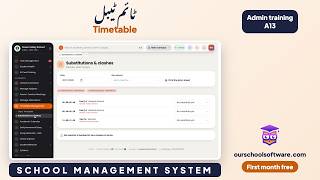
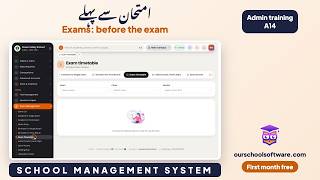
This video is 2 minutes long and shows attendance on the real screens of the software, step by step, with Urdu and English captions. It is for principals, admins and office staff. Below are the same steps in writing, so you can follow along at your own pace or come back to a step later.
In this video
- Mark a class
- Staff attendance
- Card / QR scanning
- Reports
Step by step
1. Mark a class
- Manage Attendance › Students Attendance: choose the class, section and date
- Everyone at once: "Mark all" › "Present"
- Then mark those who did not come "A" (absent) or "L" (leave)
- Parents of absent children are told: WhatsApp, SMS or the app only
- At the top: present, absent, leave and not yet marked
2. Staff attendance
- "Staff Attendance": staff attendance with in and out times, the same way
3. Card / QR scanning
- "Barcode Attendance": scan the ID card QR with the phone camera or a scanner: attendance by itself (video E03)
4. Reports
- "Attendance Reports": the month's register, each child's %, and those with low attendance
- Report types: attendance sheet, monthly summary, class-wise, daily lists, yearly report and awards
5. Teachers & parents
- Teachers mark their class from the app; parents see the calendar in theirs
The names and numbers in the video are from a demo school and are made up.